Install Discord
Install Discord on your device
Our community lives on Discord — a free app. Pick the instructions for the device you're using.
iPhone / Android
- Open the App Store or Google Play Store.
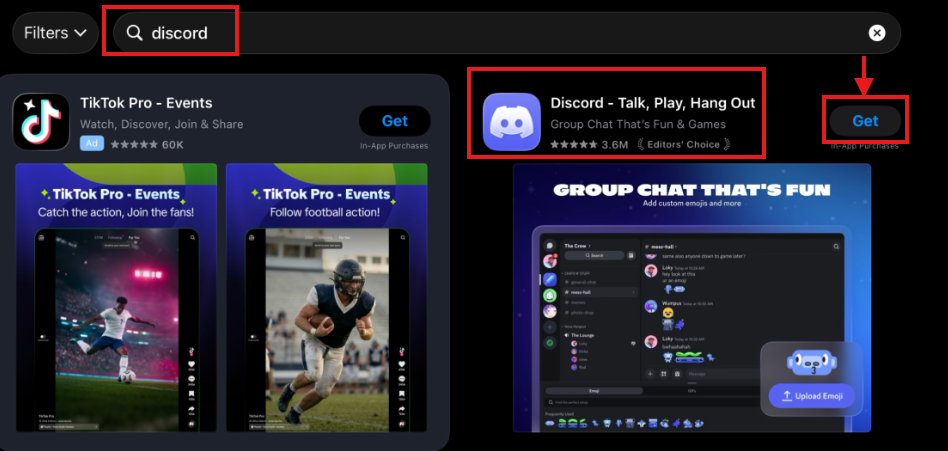
- Search for Discord.
- Install Discord – Talk, Play, Hang Out.
Computer
- Open a web browser.
- Go to discord.com/download.
- Download and install Discord.
Open Discord and choose Register
Once it's installed, open Discord. If you already have an account, choose Log In. If you're new, choose Register to create one — it takes about two minutes, and the next steps walk you through it.
Create Your Discord Account
Discord walks you through a few short screens. Here's each one.
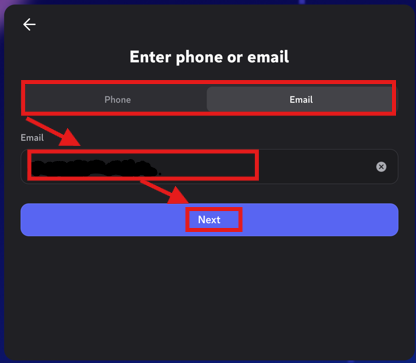
Choose Phone or Email
Select Phone or Email, enter your info, then tap Next.
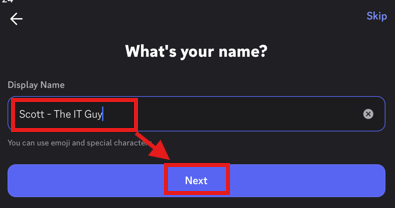
Enter Your Display Name
Type the name you want the community to see, then tap Next.
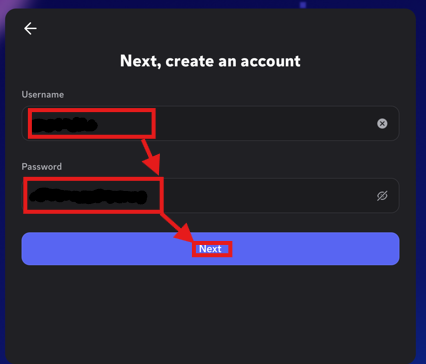
Create Username & Password
Create your unique username and a password, then tap Next.
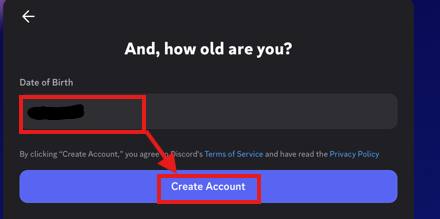
Enter Your Birthdate
Enter your date of birth and complete any human-verification check.
Join King's Community
Come into the brotherhood
Make sure Discord is installed and you're signed in first. Then tap below — it'll open Discord and bring you right to our door.
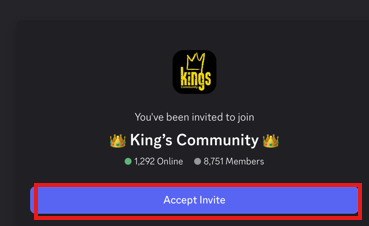
Join King's CommunityAccept the invitation
Discord will open and show the King's Community invitation. Tap Accept Invite.
Activate Your Free 10-Day Trial
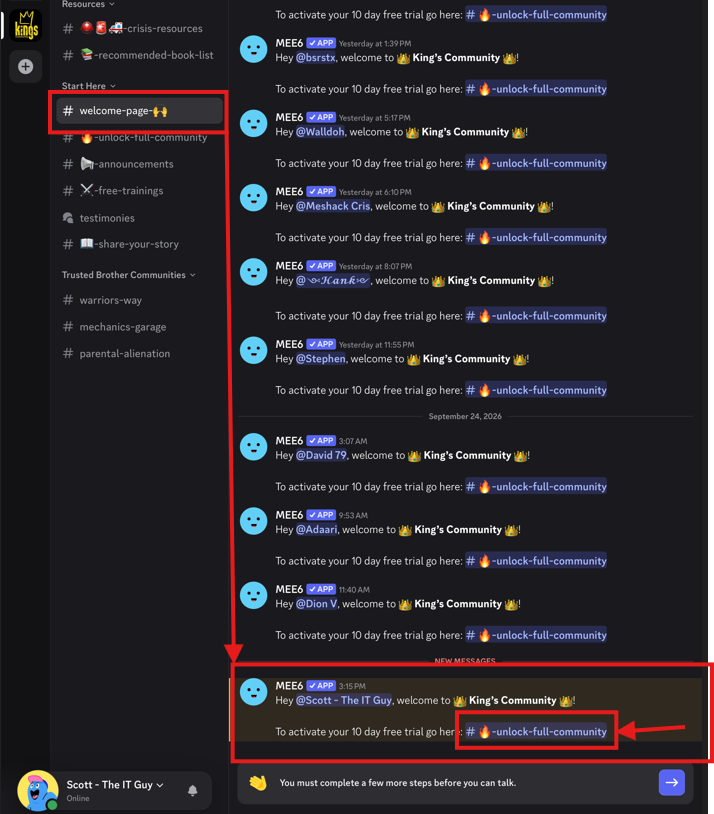
Open the trial access channel
You'll land on the Welcome page. Find the MEE6 message and tap #🔥-unlock-full-community.
Complete any required server setup
If you see "You must complete a few more steps before you can talk," tap the arrow on the right.
- Verify your email if Discord still asks.
- Read the server rules.
- Check the acceptance box and tap Complete.
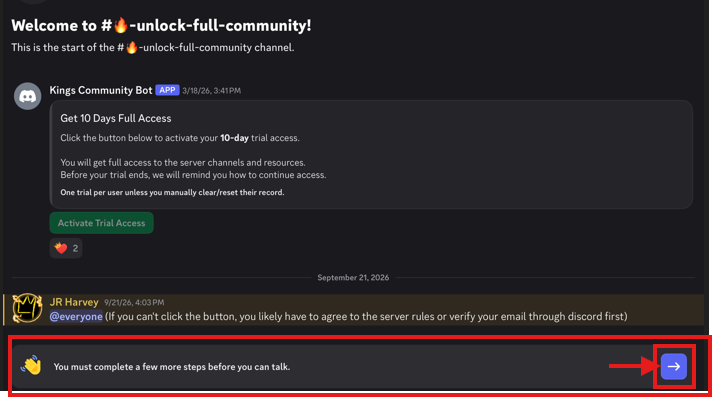
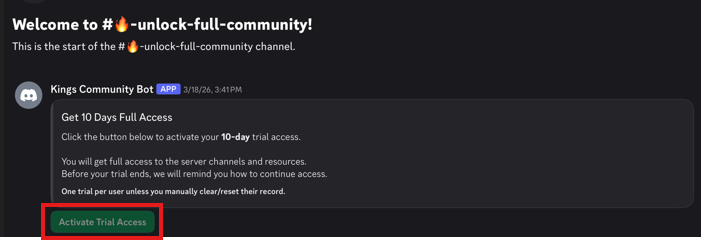
Activate your trial
Return to #🔥-unlock-full-community and tap Activate Trial Access. That's it — your 10 days are live.
Book Your First Group Call
Don't just join. Show up.
The men who change the fastest are the ones who get on a call in their first week. Pick a time below — we'll put it on your calendar and text you the link before it starts.
Free with your trial · all times shown in EST · change it anytime
You're in. Welcome to the brotherhood.
Discord installed, trial active, first call booked. Now show up — the work starts in the room.